Tuesday, June 9, 2020

S2 Dynamic Tracer And Decompiler For Gdb

Decompiling is very useful for understanding srtipped binaries, most dissasemblers like IDA or Hopper have a plugin for decompiling binaries, generating a c like pseudocode.

Static analysis, is very useful in most of cases, specially when the binary is not so big, or when you just have an address where to start to analyze. But some algorithms will be learned in less time by dynamic analysis like tracing or debugging.

In cookiemonsters team, we are working on several tracers with different focus, but all of them mix the concept of tracing and decompiling to generate human-readable traces.

S2 is my tracer & decompiler plugin for gdb, very useful for ctfs.
Some of the features are:

- signed/unsigned detecion
- conditional pseudocode (if)
- syscall resolution
- unroll bucles
- used registers values
- mem states
- strings
- logging


More info


¿Cuál Es La Diferencia Entre Los Puertos VGA, DVI Y HDMI?

More information

Reversing C++ String And QString

After the rust string overview of its internal substructures, let's see if c++ QString storage is more light, but first we'r going to take a look to the c++ standard string object:


At first sight we can see the allocation and deallocation created by the clang++ compiler, and the DAT_00400d34 is the string.

If we use same algorithm than the rust code but in c++:


We have a different decompilation layout. Note that the Ghidra scans very fast the c++ binaries, and with rust binaries gets crazy for a while.
Locating main is also very simple in a c++ compiled binary, indeed is more  low-level than rust.


The byte array is initialized with a simply move instruction:
        00400c4b 48 b8 68        MOV        RAX,0x6f77206f6c6c6568

And basic_string generates the string, in the case of rust this was carazy endless set of calls, detected by ghidra as a runtime, but nevertheless the basic_string is an external imported function not included on the binary.

(gdb) x/x 0x7fffffffe1d0
0x7fffffffe1d0: 0xffffe1e0            low str ptr
0x7fffffffe1d4: 0x00007fff           hight str ptr
0x7fffffffe1d8: 0x0000000b        sz
0x7fffffffe1dc: 0x00000000
0x7fffffffe1e0: 0x6c6c6568         "hello world"
0x7fffffffe1e4: 0x6f77206f
0x7fffffffe1e8: 0x00646c72
0x7fffffffe1ec: 0x00000000        null terminated
(gdb) x/s 0x7fffffffe1e0
0x7fffffffe1e0: "hello world"

The string is on the stack, and it's very curious to see what happens if there are two followed strings like these:

  auto s = string(cstr);
  string s2 = "test";

Clang puts toguether both stack strings:
[ptr1][sz1][string1][null][string2][null][ptr2][sz2]

C++ QString datatype

Let's see the great and featured QString object defined on qstring.cpp and qstring.h

Some QString methods use the QCharRef class whose definition is below:

class Q_EXPORT QCharRef {
friend class QString;
QString& s;
uint p;
Searching for the properties on the QString class I've realized that one improvement that  rust and golang does is the separation from properties and methods, so in the large QString class the methods are  hidden among the hundreds of methods, but basically the storage is a QStringData *;

After removing the methods of QStringData class definition we have this:

struct Q_EXPORT QStringData : public QShared {
    QChar *unicode;
    char *ascii;
#ifdef Q_OS_MAC9
    uint len;
#else
    uint len : 30;

Hacking All The Cars - Part 2


Connecting Hardware to Your Real Car: 

 I realized the other day I posted Part 2 of this series to my youtube awhile ago but not blogger so this one will be quick and mostly via video walkthrough. I often post random followup videos which may never arrive on this blog. So if you're waiting on something specific I mentioned or the next part to a series its always a good idea to subscribe to the YouTube. This is almost always true if there is video associated with the post.  

In the last blog we went over using virtual CAN devices to interact with a virtual car simulators of a CAN network This was awesome because it allowed us to learn how to interact with he underlying CAN network without fear of hacking around on an expensive automobile. But now it's time to put on your big boy pants and create a real CAN interface with hardware and plug your hardware device into your ODB2 port. 

The video I created below will show you where to plug your device in, how to configure it and how to take the information you learned while hacking around on the virtual car from part1 and apply it directly to a real car.   

Video Walk Through Using Hardware on a Real Car


As a reference here are the two device options I used in the video and the needed cable: 

Hardware Used: 

Get OBD2 Cable:
https://amzn.to/2QSmtyL

Get CANtact:
https://amzn.to/2xCqhMt

Get USB2CAN:
https://shop.8devices.com/usb2can


Creating Network Interfaces: 

As a reference here are the commands from the video for creating a CAN network interface: 

USB2Can Setup: 
The following command will bring up your can interface and you should see the device light color change: 
sudo ip link set can0 up type can bitrate 125000

Contact Setup: 
Set your jumpers on 3,5 and 7 as seen in the picture in the video
Sudo slcand -o -s6 /dev/ttyACM can0 <— whatever device you see in your DMESG output
Ifconfig can0 up

Summary: 

That should get you started connecting to physical cars and hacking around. I was also doing a bit of python coding over these interfaces to perform actions and sniff traffic. I might post that if anyone is interested. Mostly I have been hacking around on blockchain stuff and creating full course content recently so keep a look out for that in the future. 

Continue reading


  1. Hacking With Linux
  2. Pentest Network
  3. Pentest Devices
  4. Pentest Example Report
  5. How To Pentest A Network
  6. Hacker Attack
  7. Pentest Android App
  8. Hacker Language

Monday, June 8, 2020

How To Remove Write Protection From USB Drives And Memory Cards

If you've got a USB drive or SD card that can't be formatted and to which you can't copy files, then take a look at our guide to removing write protection.

Sometimes you'll find that it's impossible to format, delete or copy new files to an SD card or USB flash drive. Windows will tell you that it is write protected, even though there is no 'lock' switch or – if there is – you've made sure the switch is set correctly to allow files to be written to the drive.
But just in case this switch is news to you, it is well worth checking that your device has the switch set to 'unlocked'. When set to 'locked' you won't be able to copy any new files on to the memory card or USB stick, and it also stops you from accidentally formatting it.
iemhacker-remove-write-protection-from-usb
You'll still be able to view files which are already stored on the drive, but you can't delete them (they sometimes seem to delete OK, but the next time you check, there they are again!).
ut if this isn't the problem, you might still be able to fix things and continue to use your USB flash drive or SD card – we'll explain how.
Unfortunately, in some cases the device may be corrupt or physically broken and no tricks or software will make it work again. The only solution in this case is to buy a new drive. And if you're just trying to get back lost data, see our guide on How to recover deleted filed for free.
iemhacker
In any version of Windows from XP onwards, run Regedit.exe.
If you're not sure how to find it, searching 'regedit' in the Start menu will usually show the program at the top of the list.
It's a bit like File Explorer, so use the pane on the left to navigate to the following key:
Computer\HKEY_LOCAL_MACHINE\SYSTEM\CurrentControlSet\Control\StorageDevicePolicies
Note: if you can't find StorageDevicePolicies, see the next step.
Double-click on the WriteProtect value in the right-hand pane. You can now change the Value data from 1 to 0. Then click OK to save the change. Close Regedit and restart your computer. Connect your USB drive again and, with a bit of luck, you should find it is no longer write protected.
You can now continue to use the drive, but it's worth copying off any files you want to keep and then formatting it by right-clicking on it in the list of drives in File Explorer and choosing Format.

StorageDevicePolicies

If you can't find StorageDevicePolicies, you can create it by right-clicking in the white space in the 'Control' folder and choosing New -> Key and entering the name StorageDevicePolicies.
Now double-click on the new key (it will show as a folder) and right-click once again in the white space and choose New -> DWORD. Name this WriteProtect and set its value to 0. Click OK, exit Regedit and reboot your computer.
If this method doesn't work, go to the next step.

Diskpart

iemhacker
With your USB drive or memory card attached to your computer, launch a command prompt. You can do this by searching for cmd.exe or 'Command Prompt' in the Start menu.
Note: you may need to run cmd.exe with administrator privileges if you see an "access is denied" message. To do this, right-click on Command Prompt in the Start menu and choose 'Run as administrator' from the menu that appears.
If you have Windows 10, simply right-click on the Start button (bottom left of the screen) and choose Command Prompt (admin).
Now, at the prompt, type the following and press Enter after each command:
diskpart
list disk
select disk x (where x is the number of your non-working drive – use the capacity to work out which one it is)
attributes disk clear readonly
clean
create partition primary
format fs=fat32 (you can swap fat32 for ntfs if you only need to use the drive with Windows computers)
exit
That's it. Your drive should now work as normal in File Explorer. If it doesn't, it's bad news and there's nothing more to be done. Your stick or memory card is scrap and fit only for the bin. But the good news is that storage is cheap.
Related word

15 Important Run Commands Every Windows User Should Know

There are several ways to efficiently access the files, folders, and programs in Windows operating system. We can create shortcuts, pin programs to the taskbar, Start menu shortcuts etc. but we can't do it for all programs in many cases. However, the Windows Run Command box is one of the most efficient ways of accessing system programs, folders, and settings.

In this article, I am going to share 15 most important Run commands for Windows users. These commands can make it easier to manage a lot of tasks.
How to open Windows Run command box?
You need to press Win+R (Hold Windows button then Press R)

Important Run Commands Every Windows User Should Know

1. %temp%
This is the fastest way to clear the temporary files from your computer. It can save a lot of space which was being wasted by temporary files.
2. cmd 
This command will open the windows DOS command prompt. Windows command prompt is very useful for performing many tasks which are not possible using graphical user interface.
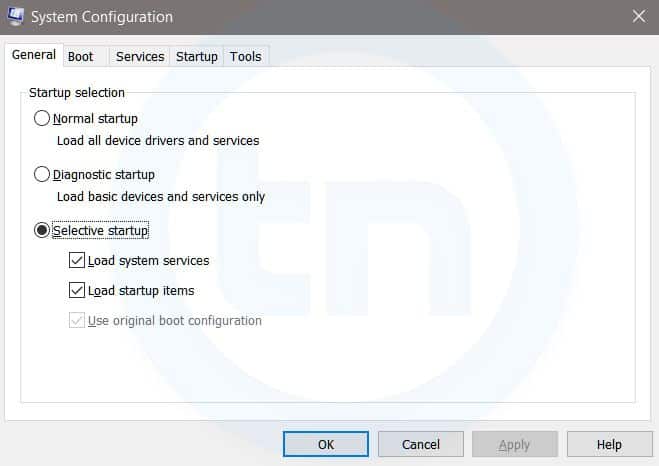
3. MSConfig
Windows Run Command - MSconfig-compressed
Windows System Configuration
This command will open Windows System Configuration where you can edit different things like the boot options, startup options, services, etc.
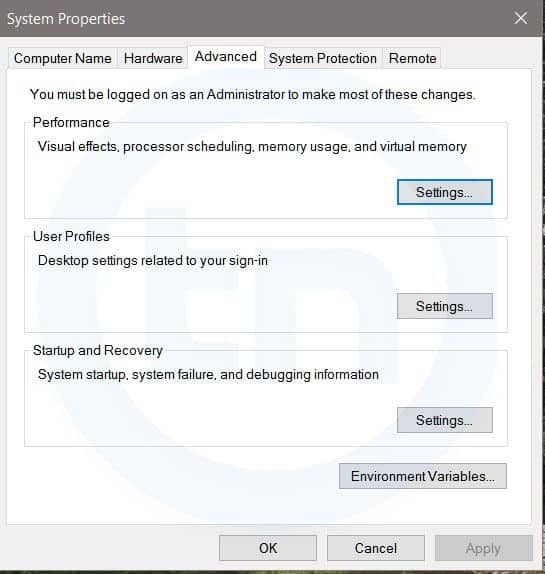
4. sysdm.cpl
Windows Run Command - sysdm cpl-compressed
System Properties window
This command will open the System Properties window, Where you can change the system protection and performance related many settings
5. Powershell
Powershell is very similar the command prompt. Just type this command in the Run dialog box, and you will have your PowerShell opened without administrator privileges.
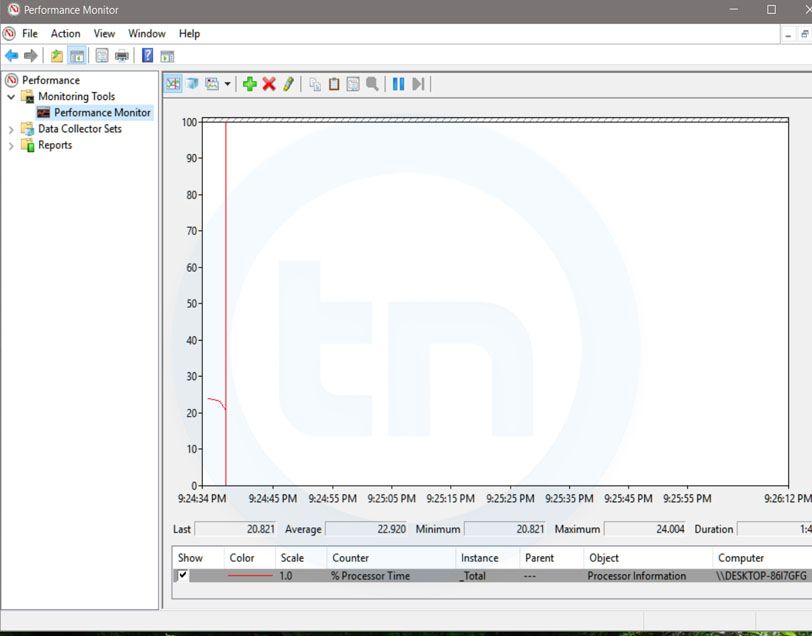
6. perfmon.msc
Windows Run Command - perfmon msc-compressed
Windows System Performance monitor
This command can be used to monitor the performance of your computer. There are plenty of options for monitoring the system performance
7. regedit
Regedit Run command is used to open the Windows Registry. It is a hierarchical database that hosts all the configurations and settings of Windows operating system, it's users and the installed software.
8. \ (Backslash)
This is one of the lesser known Run commands. Just enter the backslash into the Run dialog box and it will open up the C drive. It is one of the quickest ways to access the C drive.
9. . (Dot)
This is yet another lesser known Run command. When executed, it opens the current user's home folder which hosts all the other local folders like the Downloads, Documents, Desktop, Pictures, etc.
10. .. (Double Dots)
When you execute these two dots in the Run dialog box, it will open up the Users folder which is located directly on the C drive
11. Control
This command will open the control panel. Control panel is used for managing all the system settings and programs
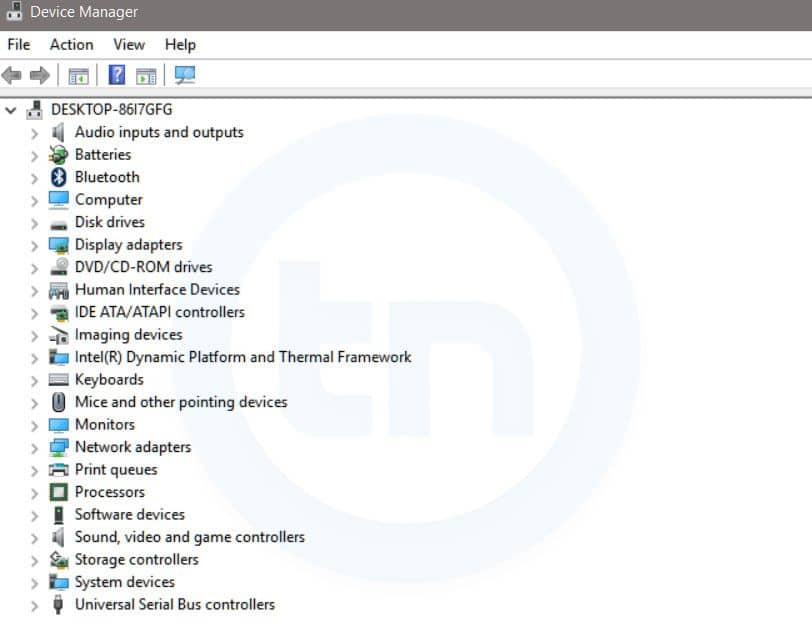
12. hdwwiz.cpl
Windows Run Command - hdwwiz-
Windows Device Manager
This command is used to open the Device Manager in Windows. You can manage all the device connected internally or externally to your PC.
13. Notepad
The quickest way to open notepad in Windows. Just type this command in Run Box and hit enter.
14. osk
This command will open On-Screen Keyboard on your display monitor. You can easily touch and type or use your mouse for typing.
15. taskmgr 
This command will open task manager where you can manage all the processes and programs running on Windows Operating system.
More information

Sunday, June 7, 2020

AutoNSE - Massive NSE (Nmap Scripting Engine) AutoSploit And AutoScanner


Massive NSE (Nmap Scripting Engine) AutoSploit and AutoScanner. The Nmap Scripting Engine (NSE) is one of Nmap's most powerful and flexible features. It allows users to write (and share) simple scripts (using the Lua programming language ) to automate a wide variety of networking tasks. Those scripts are executed in parallel with the speed and efficiency you expect from Nmap. Users can rely on the growing and diverse set of scripts distributed with Nmap, or write their own to meet custom needs. For more informations https://nmap.org/book/man-nse.html

Installation
$ git clone https://github.com/m4ll0k/AutoNSE.git
$ cd AutoNSE
$ bash autonse.sh

Exmaples
$ bash autonse.sh


Continue reading
  1. Hacking To The Gate
  2. Hacking Quotes
  3. Pentest Example Report
  4. Pentest Android App
  5. Pentest Questions
  6. Hacking Site
  7. Hacking Meaning
  8. Hacking Language
  9. Pentest App